
Working hours: set up your team's schedule in Kinmu
Learn how to set up working hours in Kinmu: weekly hours, start and finish times, breaks, flexibility, working days and days off.
Benefits
- Define weekly hours, start and finish times, and breaks
- Set the schedule flexibility each person needs
- Mark working days and days off
- Create several schedule types for different roles
- Working hours are the reference used to measure every clock-in
How do I set up my team's working hours in Kinmu?
Step by step
Read the transcript
Is your team's schedule written down anywhere, or does it live in your head? Let's fix that in two minutes. It all happens in Kinmu, under Company.
Open the Work schedule tab.
This is your default schedule. Everyone invited to the company gets it on arrival, and it can repeat automatically every year. Weekly hours are the foundation, like the thirty seven and a half in this example. It's the baseline everything is compared against. Mark the working days. Monday to Friday here, and the weekend stays off. Set the entry and exit hours, and add some flexibility. With a fifteen minute margin, nobody sweats clocking in at nine oh five. Split shift? Two blocks a day, and the gap in between is lunch. Add as many daily rules as you need. Summer hours or a reduced schedule for a while? Create all the schedules you need, and for shift work, Kinmu has its own module.
Public holidays live in the Work calendar. Kinmu suggests them for your country, and you decide which ones count.
So why all this detail? Here's the answer, on the Clockin page. Pick anyone on your team and you'll see their hours compared against their schedule, automatically. Set up the schedule once and forget it. Your team knows their hours, and the week adds up on its own in Kinmu.
That's how you set up your company's work schedule in Kinmu, in a couple of minutes.
Every business organises working time in its own way, and that is a good thing. The difficulty comes when the schedule exists only in each person’s head: what time does work start, how long is the break, and which days are working days? If none of this is clearly defined, tracking working hours becomes an uphill task.
That is why the first step towards good time tracking is to define working hours properly. Kinmu makes it easy: set up your team’s schedule in a few minutes and, from that point on, everything falls into place.
What working hours are and why it helps to define them
Working hours are simply the work schedule assigned to each person: how many hours they work, when they start and finish, when they take breaks and which days they work. They are the framework that organises day-to-day work and, in Kinmu, the reference used to measure every clock-in.
Think of them as the pattern against which reality is compared. When someone clocks in, the system knows their planned schedule and can tell you whether it was met, whether extra hours were worked or whether time is missing. Without that reference, clock-ins are just isolated data; with it, they have meaning and give you useful information.
Our experience tells us that defining working hours properly prevents many misunderstandings. When everyone knows their schedule and it is recorded, expectations are clear for both sides. People can work with peace of mind because everyone knows what is expected from their working day and where the limits are.
Best of all, setting it up is not complicated. You do not need technical knowledge or hours of work: with a few adjustments, you can prepare the schedule for each person or team, and the app takes care of the rest. Any business can start tracking working time, whatever its size.
How to set up working hours in Kinmu
Setting up working hours in Kinmu is a guided, intuitive process. First, you define the weekly working hours, which form the basis for everything else. You specify how many hours that schedule should include, and the system uses that figure as its reference point.
Next, you set the start and finish times. You decide when the working day starts and ends, so every clock-in is compared with those limits. This lets you see at a glance whether start and finish times match what was planned, without reviewing anything manually.
Each of these elements is adjusted independently, so you can adapt the schedule to the specific circumstances of your business. You decide how much detail you need, and we make sure the calculations always match what you have defined.
Schedule flexibility, working days and days off
Not every work schedule is rigid, and Kinmu keeps that firmly in mind. That is why you can add schedule flexibility to the setup: instead of defining an exact start time, you set a window in which each person can start and finish their working day.
This flexibility fits today’s ways of working very well. Some people work better when they start earlier, while others prefer to begin a little later: with a reasonable window, both can meet their schedule without pressure over a few minutes either way. The team appreciates it, and you remain in control at all times.
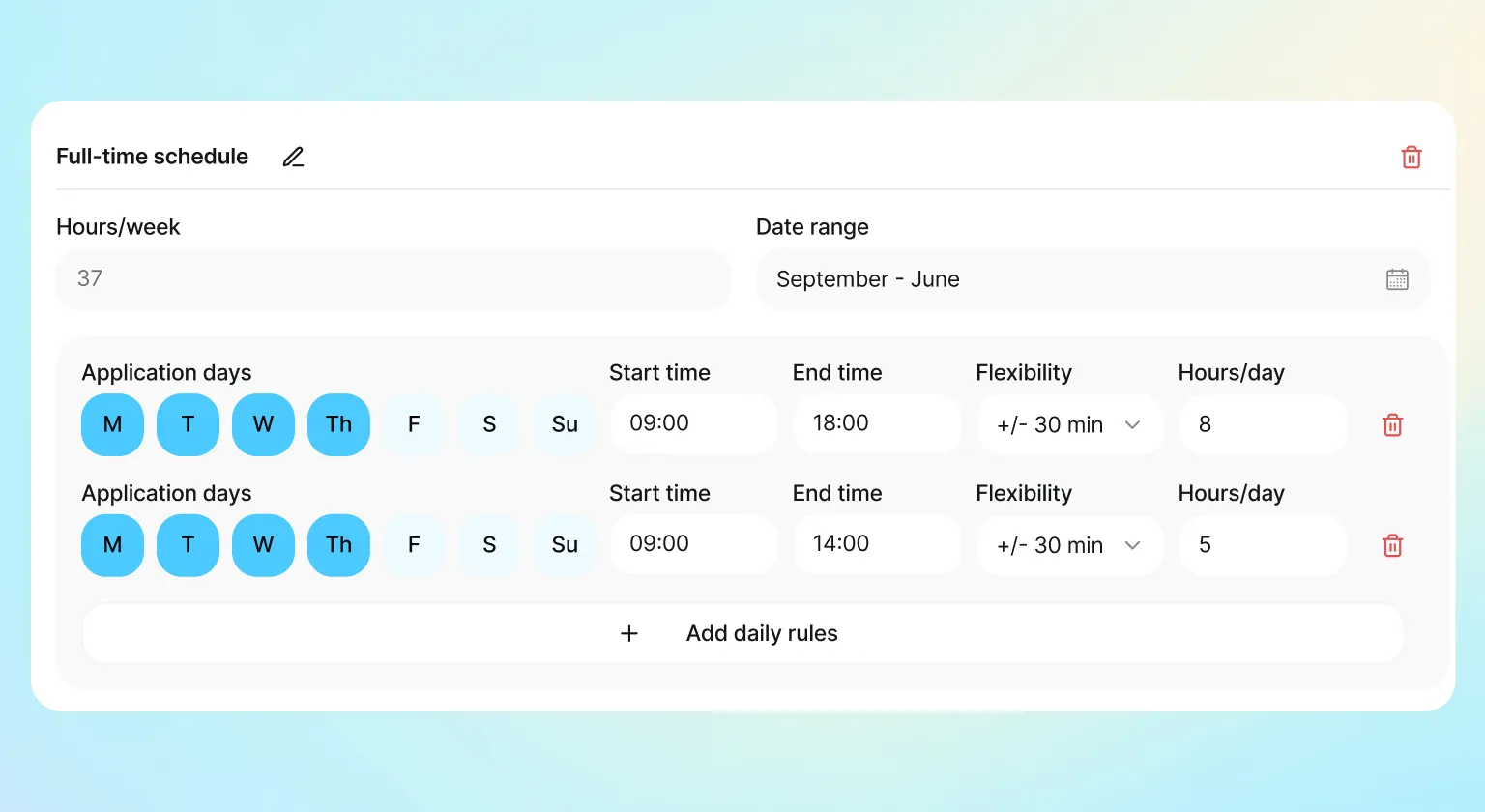
You also define which days are working days and which are days off. You set the weekly distribution that applies to each schedule, so the system knows when activity is expected and when it is not. Along with public holidays, this means calculations take each person’s actual calendar into account.
Create several types of work schedule for your business
One of Kinmu’s major advantages is that you can create several types of work schedule within the same business. You do not have to settle for a single schedule for everyone: define as many as you need and assign each person the one that applies to them.
We designed it this way because we know working arrangements vary. The same workforce can include full-time and reduced-hours schedules, morning and afternoon shifts, teams with flexibility and teams with fixed hours. With several schedule types, each situation is represented as it really is, without forcing everyone into the same mould.
Frequently Asked Questions
What are working hours in Kinmu?
They are the work schedule assigned to each person: how many hours they work, when they start and finish, when they take breaks and which days they work. In Kinmu, this is the reference used to measure all the team's clock-ins.
How do I set up working hours in Kinmu?
It is a guided, intuitive process. You define the weekly working hours, start and finish times, breaks, schedule flexibility, working days and days off. The app takes care of the rest.
Can I define the weekly hours for a schedule?
Yes. Weekly hours are the basis of the work schedule. You specify how many hours that schedule should include, and the system uses that figure as a reference when comparing clock-ins later.
Can I set start and finish times?
Yes. You decide when the working day starts and finishes, and every clock-in is compared with those limits. This lets you see at a glance whether start and finish times match what was planned.
How are breaks set up?
You enter the breaks included in each schedule so effective working time is calculated correctly. The hour calculation subtracts break times and shows the time actually worked.
What does schedule flexibility mean for working hours?
Instead of setting an exact start time, you define a window in which each person can start and finish their working day. This lets them meet their schedule without pressure over a few minutes either way.
Can I mark working days and days off?
Yes. You define which days are working days and which are days off, so the system knows when activity is expected. The calculations take each person's actual calendar into account.
Can I create several types of work schedule?
Yes. You can create as many types of work schedule as you need within the same business and assign each person the one that applies to them: full-time, reduced hours, morning, afternoon, with or without flexibility.
Why is it useful to define working hours properly?
It makes expectations clear and gives clock-ins meaning. When everyone knows their schedule and it is recorded, misunderstandings are avoided and time tracking is fair.
Are working hours linked to clock-ins?
Very closely. Working hours are the pattern used to compare what actually happens. When someone clocks in, Kinmu knows their planned schedule and can tell you whether it was met, whether there are extra hours or whether time is missing.


