Choosing a clocking method starts with a practical question: which device will each person use? A desk with a computer, a workplace with a visible code and a shared clocking point have different needs.
Kinmu supports web, app, QR and digital kiosk clocking. This guide describes non-biometric methods: actions are associated with an account or personal access, without using fingerprints or face recognition to clock in.
QR and biometric clocking: the difference
Scanning a code and recognising a physical characteristic are different mechanisms. A QR code holds information a camera can read to open a flow. A biometric system uses a characteristic such as a fingerprint or face to identify someone.
| Mechanism | What it uses | In Kinmu |
|---|---|---|
| QR clocking | A location or team code, a phone camera and access to an employee account. | Available with the QR clocking extension and the relevant settings. |
| Biometric clocking | A physical characteristic, such as a fingerprint or face, and a system that can recognise it. | Kinmu does not offer biometric clocking. |
A location or team code can be available to several people. In Kinmu, scanning it opens the clocking flow and each person uses their account to record the action. Consider both the device and that personal access when choosing a method.

How a location or team QR code works
Someone with management permissions opens the location or team, displays its code and downloads the image to place at the workplace. The company needs the QR clocking extension enabled.
Employees can use the app scanner or their phone camera and browser. They sign in when asked. The actions available depend on the working day’s state: clock in, take a break, resume or clock out.
A location or team can also require QR clocking. Check the applicable permissions and restrictions rather than assuming the manual button is always available. The QR clocking guide covers the full route and links to setup and usage help.
Web clocking from a browser
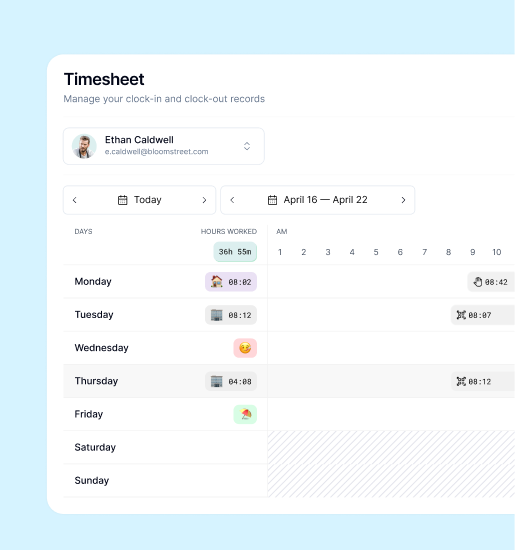
Employees can access Kinmu in a browser and record working time through their account. This can fit computer-based or remote work when company settings allow that method.
Check restrictions first. If a location or team requires a QR code, the web flow can ask for it before recording the action.
A digital kiosk on a shared device
If people do not use phones during work, the Digital Kiosk extension provides a shared point. A Global Admin or company manager creates the kiosk, selects its location, people and mode, then opens its URL on the shared device.
In Personal PIN mode, employees find their name, enter their PIN and select the relevant clock-in, break or clock-out action. Other configurable modes are available, so explain which one your team is using. See setting up a shared kiosk and clocking in at a kiosk.
What to check before choosing
- Devices: is there a computer, a camera phone or a shared screen?
- Personal access: does everyone know how to use their account or kiosk PIN?
- Workplace: does the displayed code belong to the relevant location or team?
- Settings: which extensions and restrictions are enabled?
- Support: who helps if a code is invalid or an employee is missing from the kiosk?

You can combine methods according to roles and company settings. Before launch, check with the team how each person will access the system, where they will find the code or kiosk and who they can ask for help.