
How do I set up a shared kiosk for my team to clock in?
In Kinmu, open Digital kiosk, select Create new kiosk, choose the location, the people and the clock-in method, save and open the Kiosk access URL on the shared tablet or screen.
On this page
On the web
Open Digital kiosk Open in Kinmu If your company uses Digital kiosk.
On your phone, use the menu button to open the menu first.
In the left menu.
You see Your kiosks, the list of kiosks in your company.
Create the kiosk
Select Create new kiosk. A kiosk named New kiosk appears in the list. Open it.
After you select it: 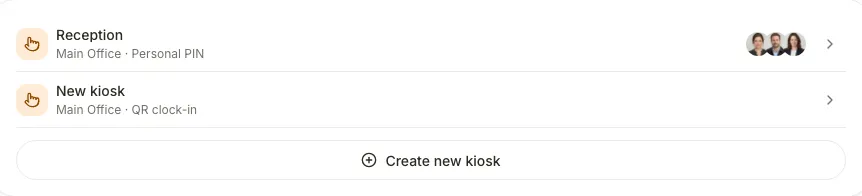
Complete the settings
In Settings, complete Name, choose the Location where the kiosk will be and the Language it will show.
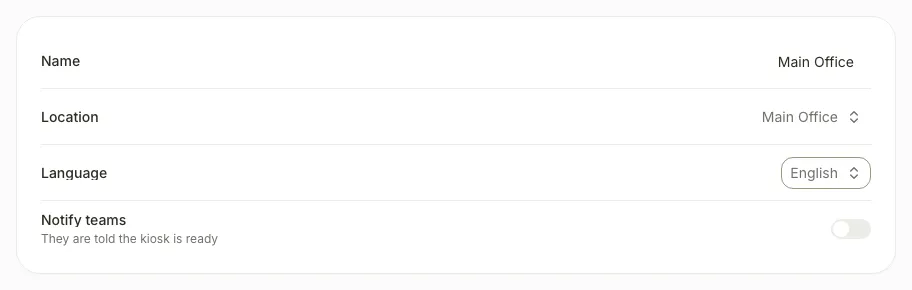
The settings show the name, location and language you selected.
Choose who clocks in here
In Staff, open Who clocks in here and choose the teams or people of that location.
After you select it: 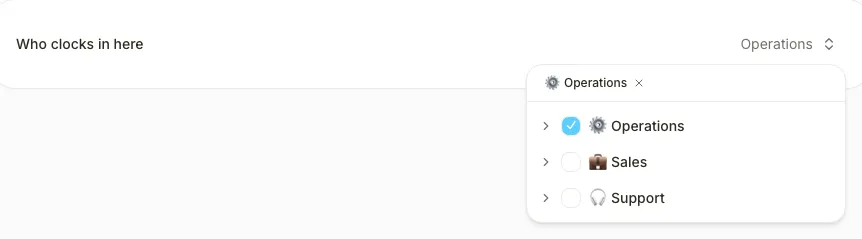
Turn on Notify teams if you want to tell the teams the kiosk is ready.
Choose the clock-in method
In Clock-in method, choose QR clock-in, Personal PIN or Dynamic code.
After you select it: 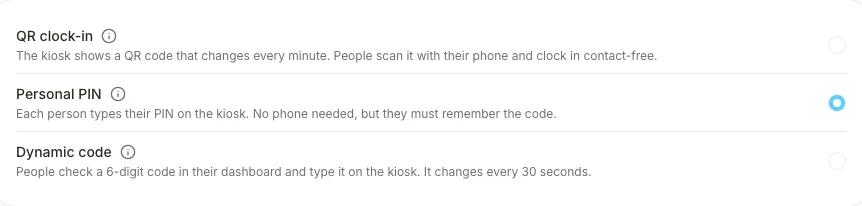
Save the kiosk
Select Save changes.
After you select it: 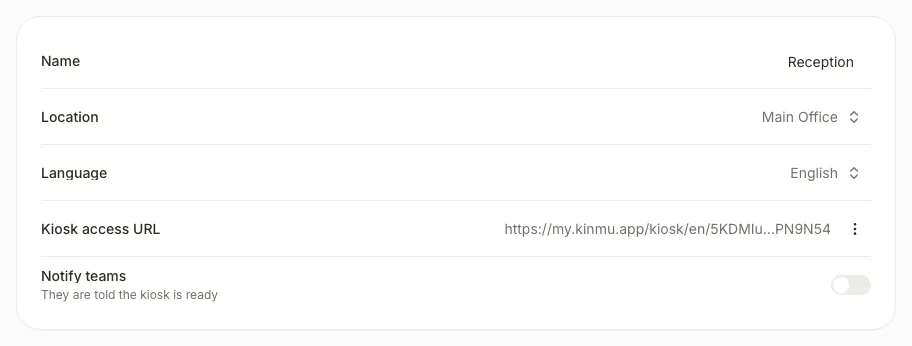
You see “Kiosk configuration saved successfully.” and Kiosk access URL appears in Settings.
Open the kiosk on the shared device
In Kiosk access URL, open the menu and select Copy URL. Open that address in the browser of the tablet or screen you will share.
After you select it: 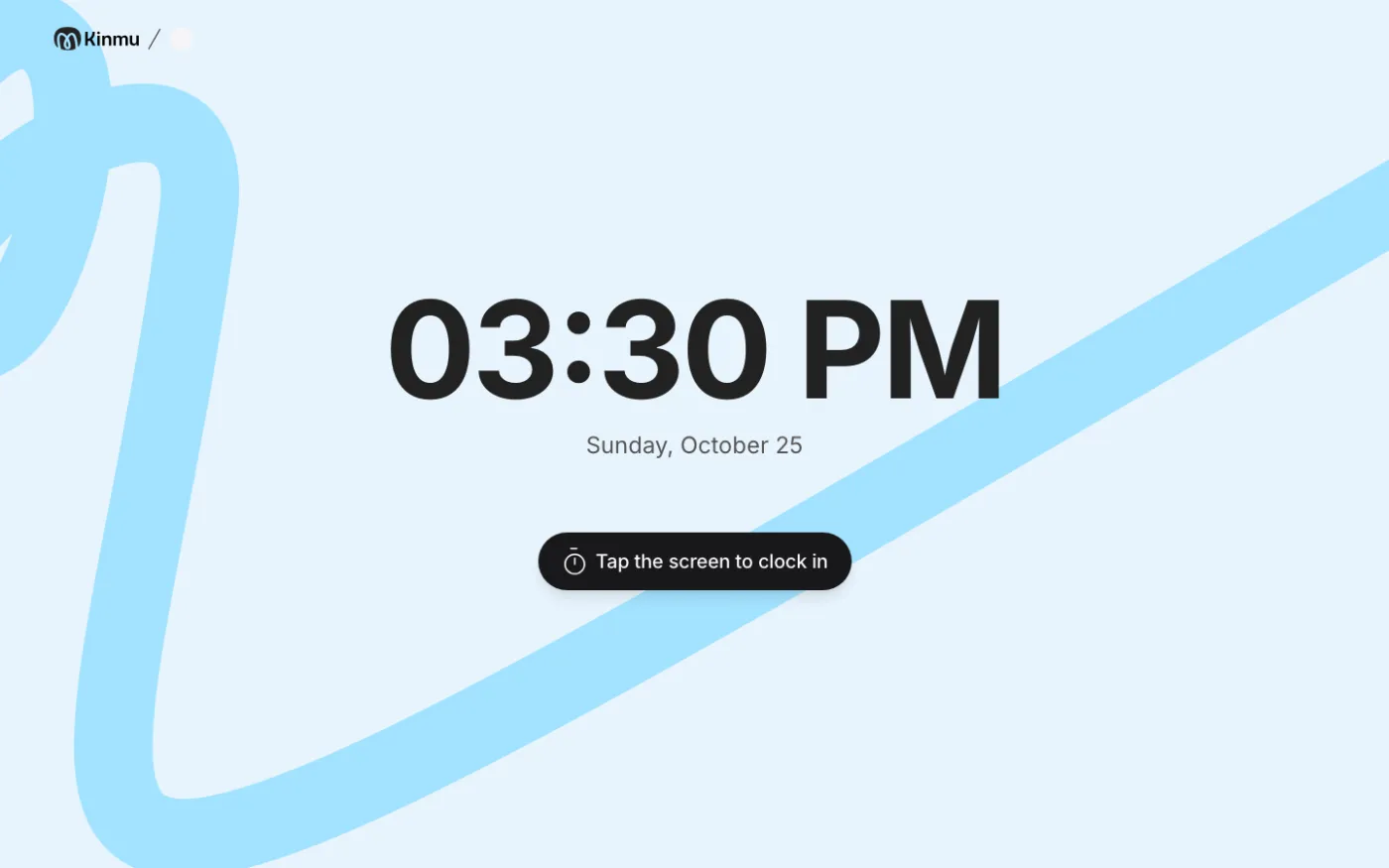
The device shows the kiosk home screen, ready for your team to clock in.
If you don’t see it
- Digital kiosk needs the Digital kiosk extension, turned on in My company › Extensions.
- Required roles: Global Admin, Manager.
- If you see “Location is required”, choose a Location before saving.
- Who clocks in here stays disabled until you choose a Location.
- Kiosk access URL appears only after you save the kiosk for the first time.
Common questions
How does each person clock in at the kiosk?
They look up their name. With QR clock-in they scan the code on screen with their phone. With Personal PIN they type their PIN, which they set up in My account. With Dynamic code they type the 6-digit code shown on their dashboard.
How do I stop using a kiosk?
Open the kiosk and select Delete kiosk. The kiosk stops working and its URL no longer works. This can’t be undone.
Result
The kiosk appears in Your kiosks with its location and method. Each person looks up their name on the kiosk and clocks in with the method you chose.
Can't find it? Write to us