
How do I review a clock-in correction from my team?
In Kinmu, open My Tasks, select View details on the pending day, compare the previous and new times in Logs history and approve or reject the change.
On this page
On the web
Open My Tasks Open in Kinmu
On your phone, use the menu button to open the menu first.
In the left menu.
After you select it: 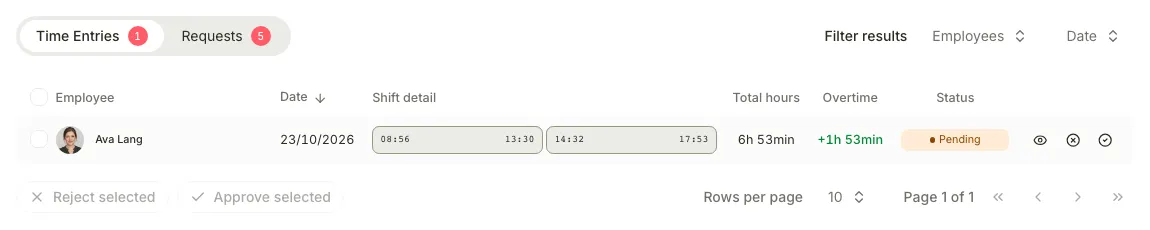
The Time Entries tab shows the changed day as Pending.
Open the day details
Select View details, the eye icon at the end of the row.
After you select it: 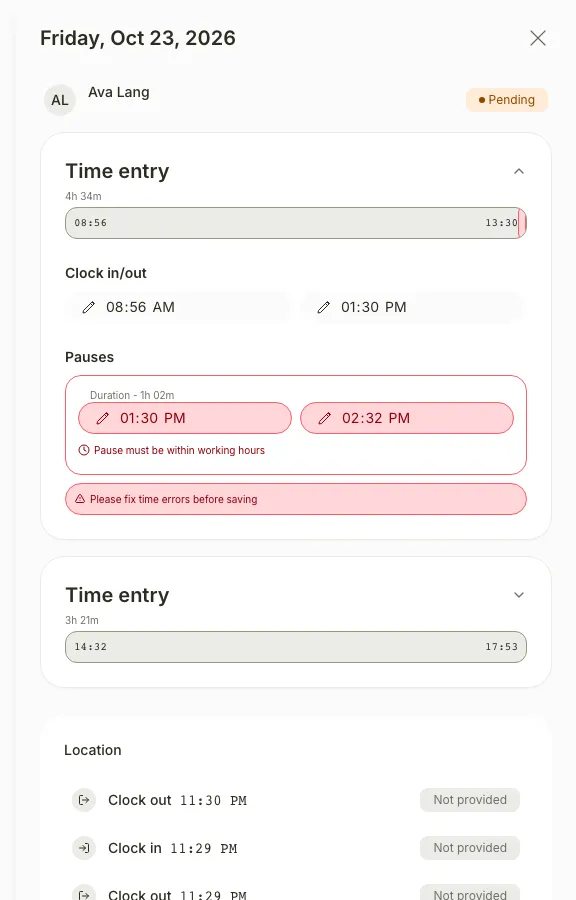
A panel opens with the day’s entries and pauses.
Open Logs history
Open Logs history at the bottom of the panel.
After you select it: 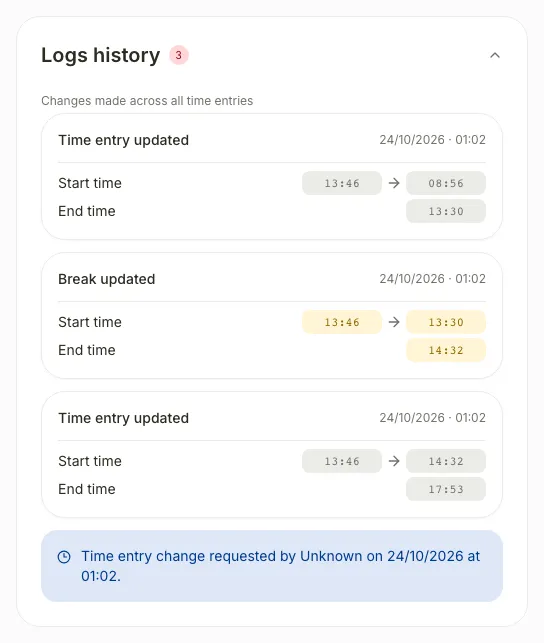
You see the changes and when they were requested, with the previous and new Start time and End time.
Approve the change
Close the panel and select Approve time entry, the check icon in the row.
After you select it: 
You see “Records approved successfully” and the day leaves the list.
If you don’t see it
- Available to these roles within their permitted scope: Global Admin, Manager, Location Manager, Unit Manager, HR Manager.
- If the day isn’t in My Tasks, the change didn’t need approval or someone has already resolved it. Check the day in Clock-in records.
Common questions
How do I reject a correction?
Select Reject time entry, the cross icon in the row, and complete Rejection reason. The employee sees “Pending review” with your reason and can correct the day again.
When does a correction reach me?
When someone changes a clock-in and the change needs approval. They see “Changes sent for approval” and the day appears in My Tasks as Pending.
Result
The day keeps the new times and no longer appears in My Tasks.
Can't find it? Write to us