
How do I create a shift template?
In Kinmu, open Schedule, go to More actions › Settings › Shift templates, select New template, set the name, location and hours and select Create template.
On this page
On the web
Open Schedule Open in Kinmu If your company uses Shifts.
On your phone, use the menu button to open the menu first.
In the left menu.
The shift planner opens on the current week.
Open the settings
Open More actions, the three dots in the planner, and select Settings.
Open Shift templates
Under Planning, open Shift templates.
After you select it: 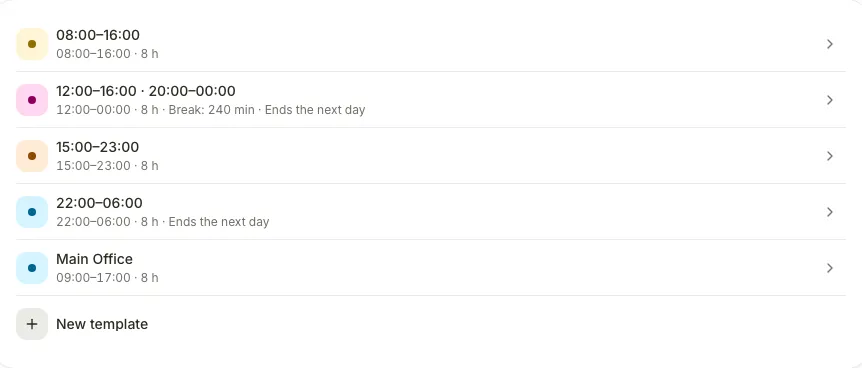
Start a new template
Select New template.
After you select it: 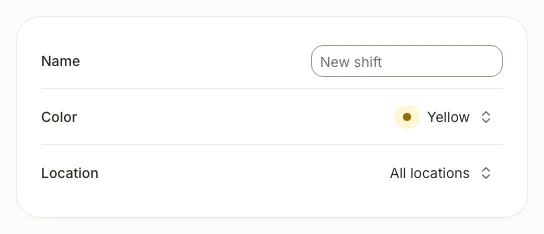
Enter the name and location
Complete Name, choose a Color and, in Location, keep All locations or choose one location.
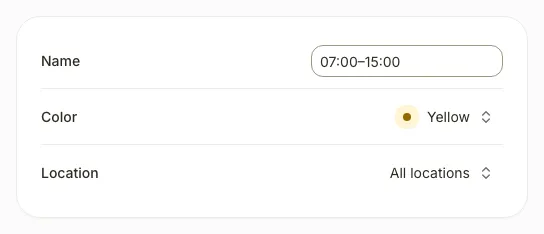
Set the hours
Choose the start in From and the end in To. To include a break, turn on Add a break and complete Break starts and Minutes.
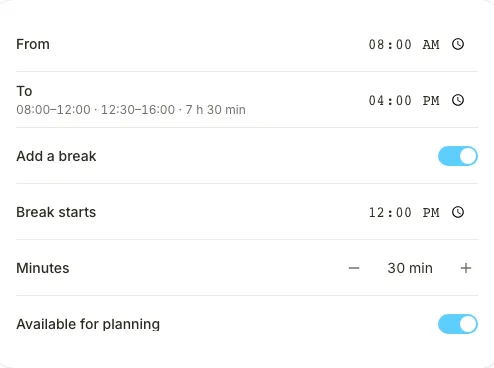
The summary shows the duration of the shift.
Create the template
Select Create template.
After you select the button, you see “Template ready — your next week is one step closer.” and the template appears in the list.
If you don’t see it
- Schedule needs the Shifts extension, turned on in My company › Extensions.
- Required roles: Global Admin, Manager.
- If you see “Check the start and end time.” or “The break must start and end inside the shift.”, adjust the hours before creating the template.
Common questions
How do I use the template to plan the week?
In Schedule, open a person’s day and select the template in Templates. The shift is added as a draft. When the week is ready, select Publish week.
Can I create a night shift that ends the next day?
Yes. Set an end time earlier than the start time. The template shows “Ends the next day”.
Result
The template appears in Shift templates with its hours. While Available for planning is on, you can use it in the planner.
Can't find it? Write to us