
How do I approve my team's pending clock-ins?
In Kinmu, open My Tasks, check each pending day in Time Entries and select Approve time entry, or select several days and choose Approve selected.
On this page
Step by step
- 0:02Approve your team's time entries
- 0:07Open My Tasks
- 0:13Filter by person
- 0:20Approve several days
- 0:24Open the day's details
- 0:31Approve the time entry
- 0:37No pending time entries
Read the transcript
Has your team corrected clock-ins that need your sign-off? Here's how to approve them in Kinmu. Open My Tasks. The Time Entries tab lists every pending day.
Only want to review one person? Pick them in Employees and the list filters.
Got lots of days? Tick them and select Approve selected. Select View details, the eye icon, to see clock-ins, clock-outs and breaks. You can also correct the times here. If everything adds up, select Approve time entry, the check icon. The day leaves the list. Once they're all done, you'll see there are no pending time entries.
That's how fast it is. With Kinmu you approve your team's clock-ins in a couple of clicks.
On the web
Open My Tasks Open in Kinmu
On your phone, use the menu button to open the menu first.
In the left menu. A dot next to it indicates pending items.
The Time Entries tab opens with every pending day.
After you select it: 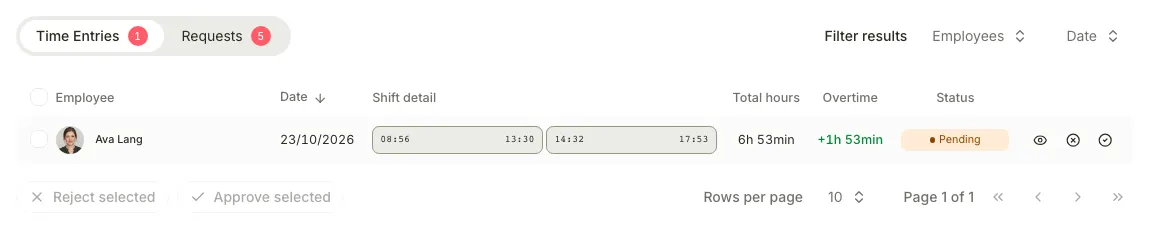
Filter the results
In Filter results, choose people in Employees and a range in Date if you only want to review part of the list.
After you select it: 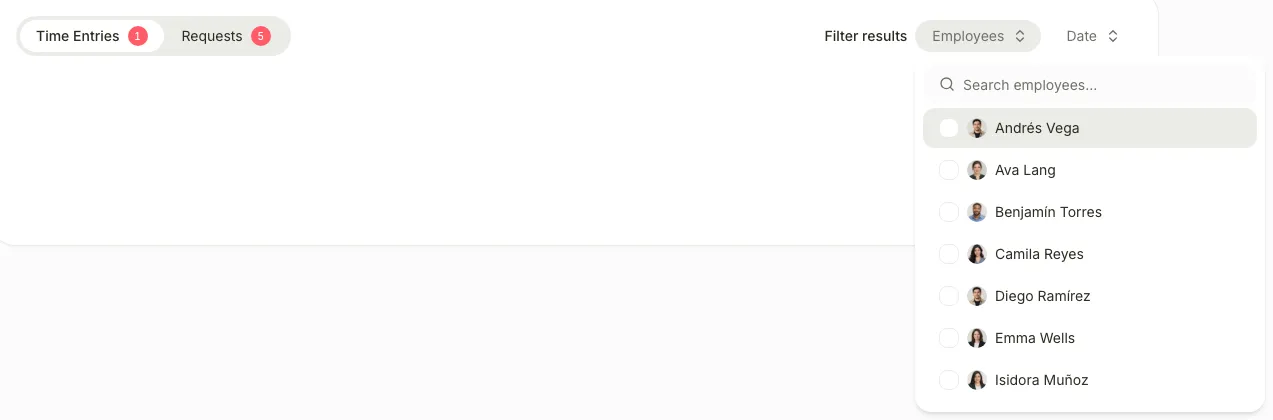
The table shows only the days that match the filters.
Open the day details
Select View details, the eye icon at the end of the row, to see the entries and pauses of that day.
After you select it: 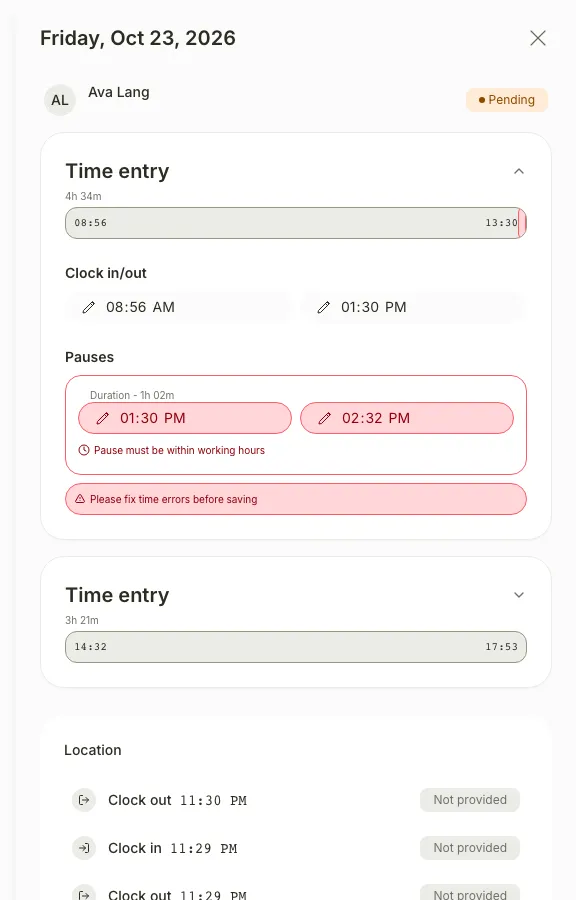
A panel opens with the day’s time entries.
You can also correct the times here.
Approve the time entries
Select Approve time entry, the check icon at the end of the row.
The approved day leaves the list.
After you select it: 
If you don’t see it
- Available to these roles within their permitted scope: Global Admin, Manager, Location Manager, Unit Manager, HR Manager.
- If you see “No pending time entries.”, there is nothing left to approve. Check that no filter is hiding days.
- Days marked Review were rejected and wait for the employee to correct them. You can’t select them until they are sent again.
Common questions
How do I reject a clock-in?
Select Reject time entry, the cross icon in the row, and complete Rejection reason. The employee sees the reason and the day shows Review until they correct it.
Can I approve a whole week at once?
Yes. In My Tasks, open Time Entries, tick the days you want to approve and select Approve selected.
Result
The approved days no longer appear in My Tasks. When nothing is left, you see “No pending time entries.”
Can't find it? Write to us