
How do I export my team's clock-in records for an inspection?
In Kinmu, open Home, select Export clock-ins in Your shortcuts, choose the dates and the people and select Export Excel to download the records.
On this page
On the web
Open Home Open in Kinmu
On your phone, use the menu button to open the menu first.
In the left menu.
Your shortcuts appears on the page.
Open Export clock-ins
In Your shortcuts, select Export clock-ins (Prepare your inspection report).
After you select it: 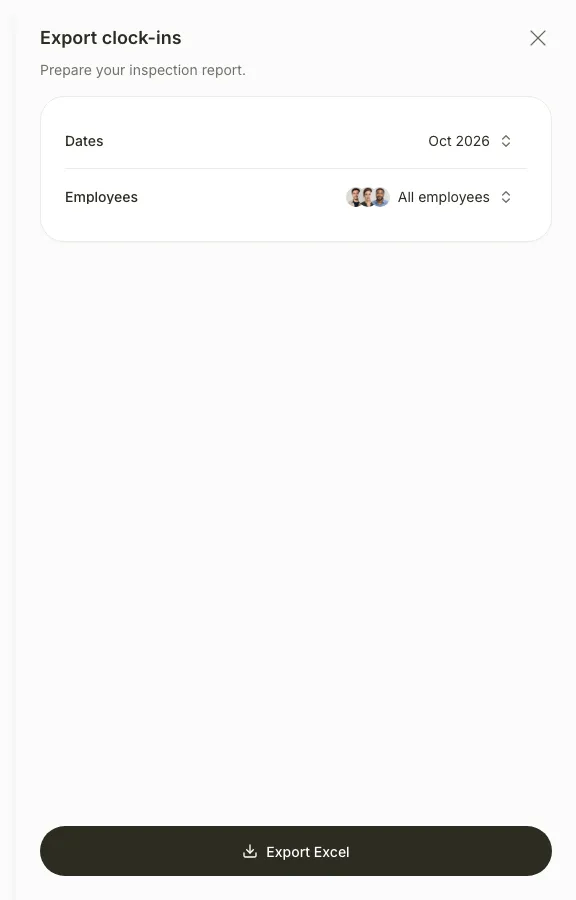
The Export clock-ins panel opens with the current month selected.
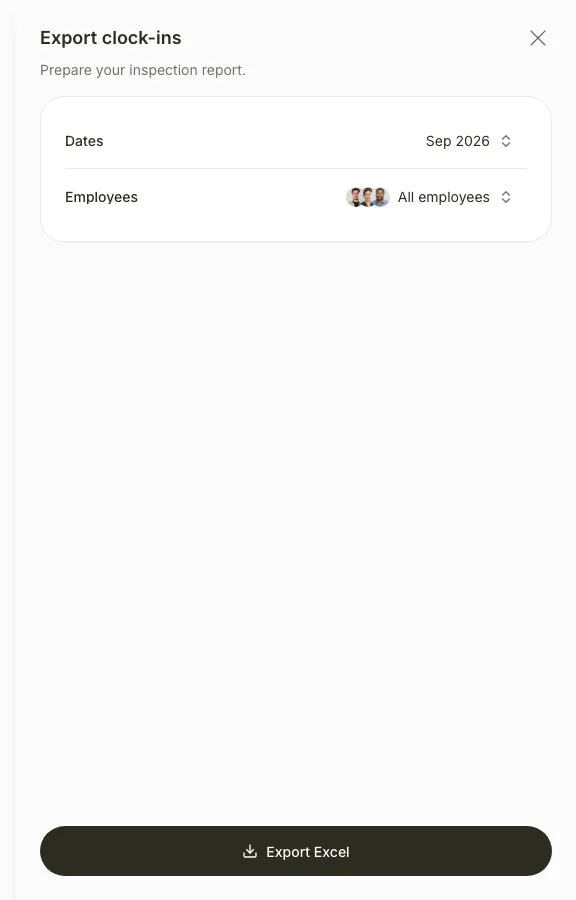
Choose the dates
In Dates, choose a quick range such as Last month or pick the start and end days. On mobile, confirm with Apply.
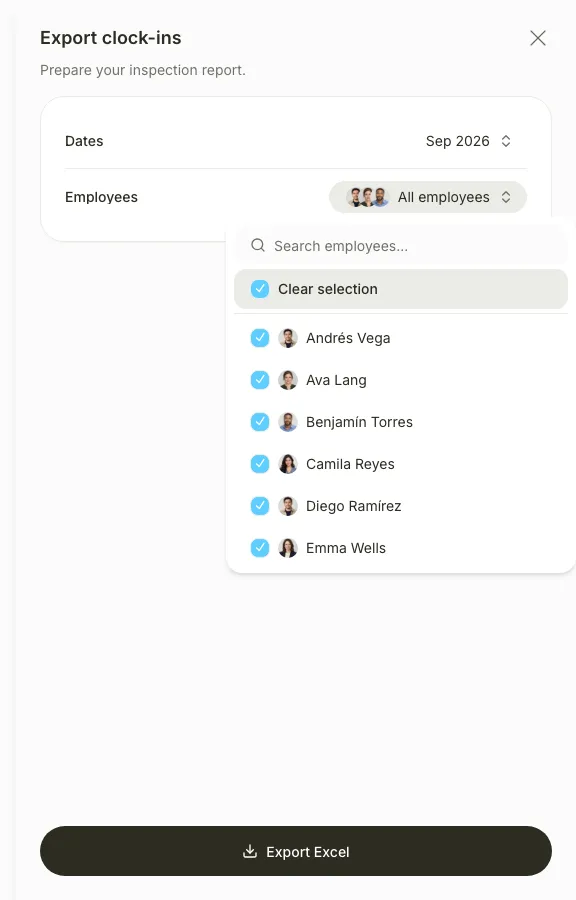
Choose the people
In Employees, keep All employees or choose the people you need.
Export the file
Select Export Excel.
After you select the button, you see “Export completed” and the Excel file downloads to your computer.
If you don’t see it
- Export clock-ins appears in Your shortcuts for the Global Admin, Manager and Location Manager roles.
- Other managers can export from a team or location. Open the team, or the location’s Location members, and select Export clock-ins.
- If you see “Date range too large”, the range is longer than 93 days. Export the period in several parts.
- If you see “Select at least one employee”, choose at least one person in Employees.
Common questions
Is this file enough for a labour inspection?
Kinmu helps you keep the records ready to hand over. What you must provide, and in what format, is set by the law of your country and by the authority that asks for it. Check with your legal adviser. For Mexico, see how working-time records work in Mexico.
Can I export one person’s records only?
Yes. Choose only that person in Employees. You can also open their profile in Users and use Export check-in data.
Result
You have an Excel file with the clock-in records of the people and dates you chose, ready to hand over when someone asks for it.
Can't find it? Write to us