
How do I approve or reject my team's time-off requests?
In Kinmu, open My Tasks, go to the Requests tab, select View details on a request and choose Approve or Reject with a reason.
On this page
Step by step
- 0:02Resolve your team's time off
- 0:07Open My Tasks
- 0:14Go to Requests
- 0:18Open the details
- 0:22Check balance and coverage
- 0:29Approve the request
- 0:34Reject with a reason
- 0:38It shows on the calendars
Read the transcript
Someone on your team asked for vacation? Here's how to review and resolve the request in Kinmu. Open My Tasks. Your pending items are grouped into tabs.
Select Requests. Each row shows the person, the type and the dates. Select View details, the robot icon at the end of the row. You see the balance, team coverage and a suggestion from Kinmu AI. The decision is yours. If it works, select Approve. The request is approved and leaves the list. Rather turn it down? Select Reject and explain the reason to the person. The approved absence shows up on the whole team's calendars.
With Kinmu you handle every time-off request on your team with context and clarity.
On the web
Open My Tasks Open in Kinmu
On your phone, use the menu button to open the menu first.
In the left menu.
Your pending tasks appear, grouped in tabs.
Open the Requests tab
Select the Requests tab.
After you select it: 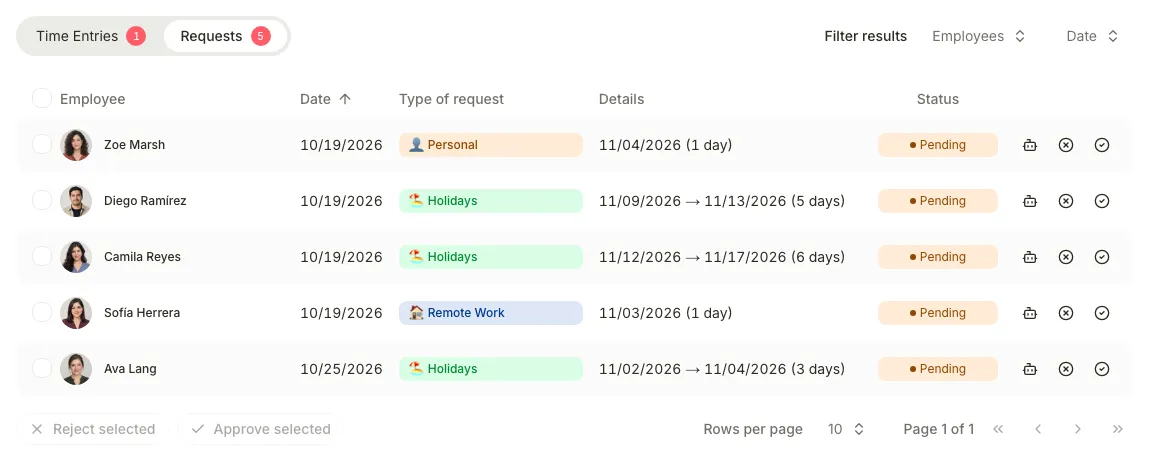
Each request shows the person, Type of request and, in Details, the dates and number of days.
Open the request details
Select View details, the robot icon at the end of the row.
The panel shows the request, checks such as balance and team coverage, and a suggestion from Kinmu AI. The decision is yours.
After you select it: 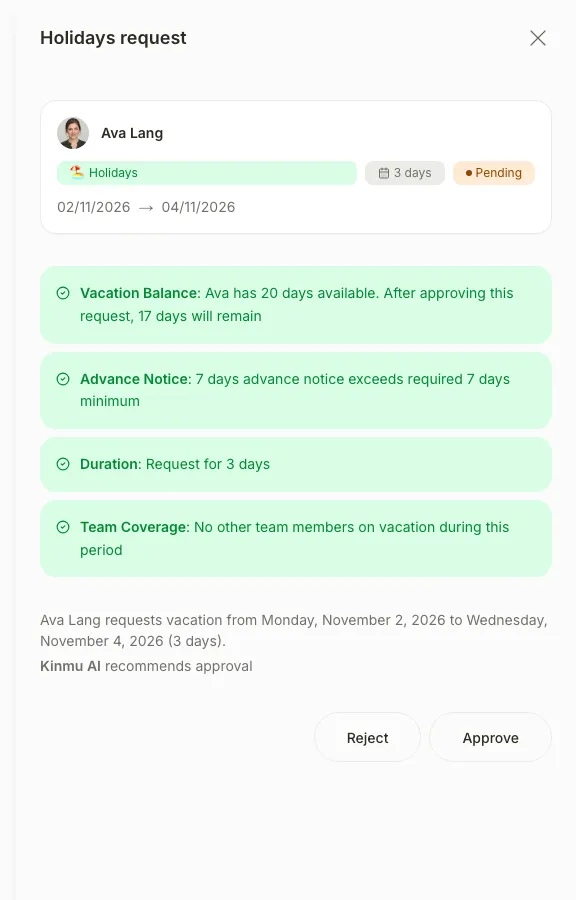
Approve the request
Select Approve in the panel.
After you select it: 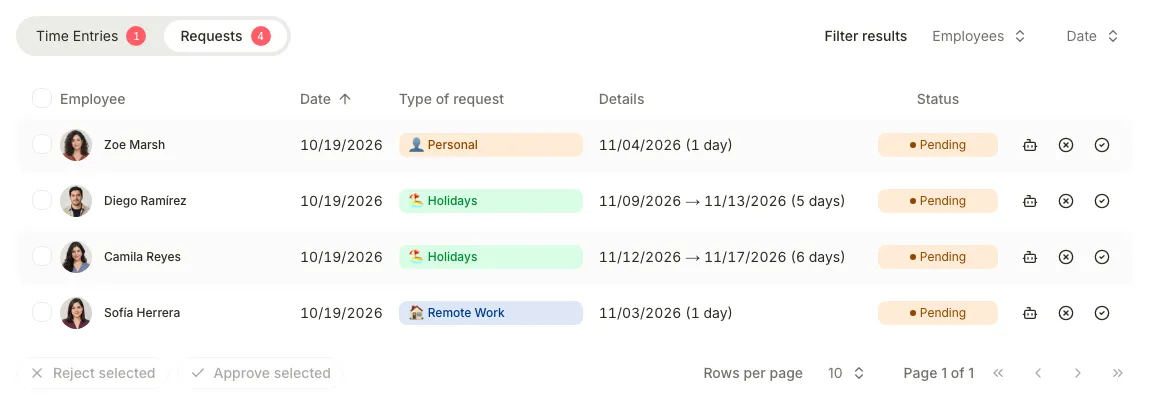
You see “Request approved” and the request leaves the list.
If you don’t see it
- Available to these roles within their permitted scope: Global Admin, Manager, Location Manager, Unit Manager, HR Manager.
- If you see “No pending requests.”, there is nothing to resolve. Check that no filter in Filter results is hiding requests.
- If the approve and reject buttons are disabled, you can’t resolve that person’s request.
- If you see “Published shift conflict”, the absence overlaps shifts already published with the Shifts extension. Select Find cover or adjust the shifts before approving.
Common questions
How do I reject a request?
Select Reject in the panel, enter Rejection reason and select Reject in the dialog.
Can I approve several requests at once?
Yes. Tick the requests in the Requests tab and select Approve selected.
Result
The absence shows as Approved on the calendars and no longer appears in Requests. When nothing is left, you see “No pending requests.”
Can't find it? Write to us