
How do I set up my team's work schedule?
In Kinmu, open My company, go to Company work schedules and configure the days, hours and periods for your team’s work schedule.
On this page
Step by step
- 0:02Set up your team's schedule
- 0:06Open My company
- 0:12Go to Company work schedules
- 0:17Create or open a schedule
- 0:22Give it a name
- 0:26Make it the default
- 0:31Set the period
- 0:37Add daily rules
- 0:42Fill in days and hours
- 0:48Save your changes
- 0:53Assign it to people
Read the transcript
Want Kinmu to know when your team works? Here's how to set up their schedule. Open My company in the side menu. This is where your company settings live.
Scroll down to Company work schedules. Here are the schedules you already have. Select Add a new work schedule, or open the schedule you want to change.
In Name, type a name that identifies the schedule.
With Mark as default work schedule, the schedule is assigned to new people automatically. Open the period, or add another. Set when it starts and, if needed, when it ends. Inside the period, select Add daily rules, or open one that already exists. Fill in the days of application, time slot, clock-in margin and hours per day. Then select Save. Finally, select Save changes. Saving the rule doesn't save the schedule. And that's it. The schedule is saved, and you can assign it to anyone from their profile.
It's that easy. With Kinmu you set up your team's work schedule just once.
On the web
Open My company Open in Kinmu
On your phone, use the menu button to open the menu first.
In the left menu.
Find Company work schedules
On the My company page, find Company work schedules.
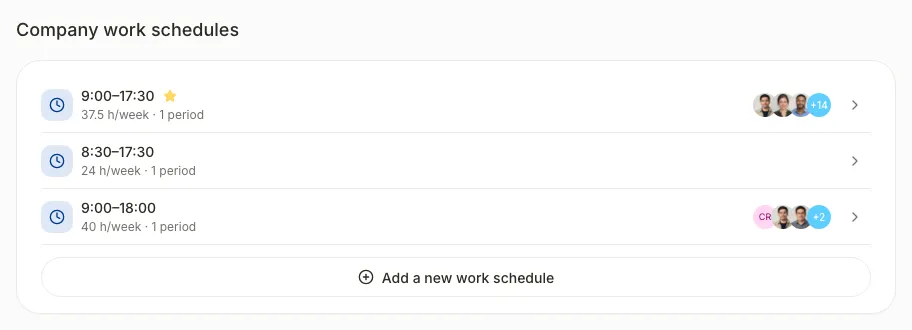
Create or open a schedule
Select Add a new work schedule or open the schedule you want to change.
After you select it: 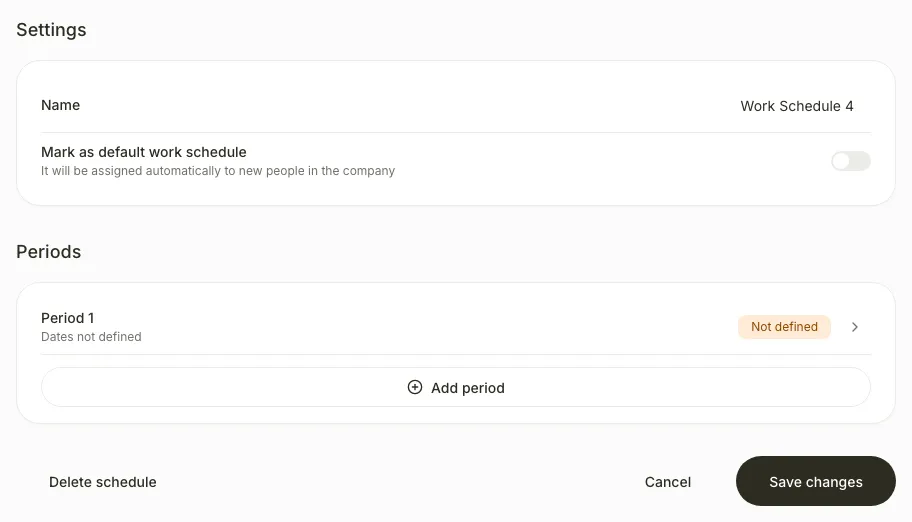
Enter a name
Complete Name with a name that identifies the schedule.
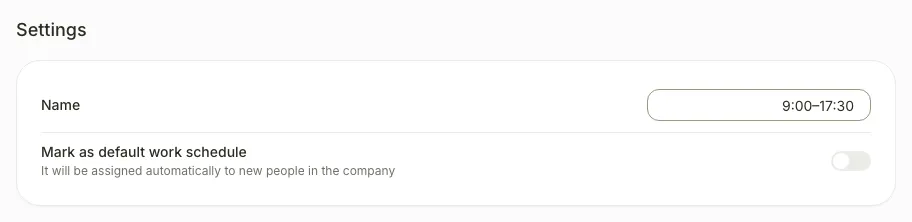
Set the period
Open Period 1, or select Add period to add another.
Complete Name and set the start and optional end in Period. Hours/week is calculated from the daily rules.
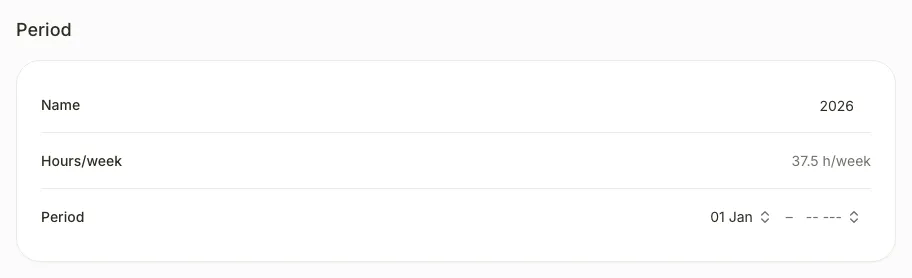
Add daily rules
Select Add daily rules inside the period.
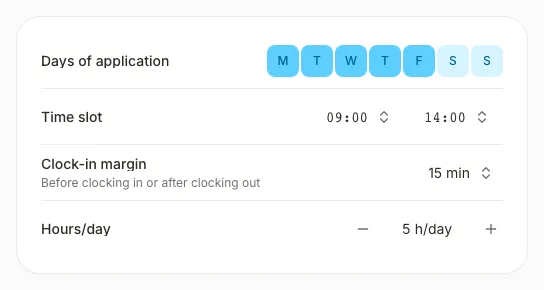
Complete the fields
In Add time slot, complete Days of application, Time slot, Clock-in margin, Hours/day. Select Save.
The rule appears in the period.
Save the work schedule
Select Save changes at the bottom of the period. Saving the rule alone does not save the schedule.
The schedule appears in the list.
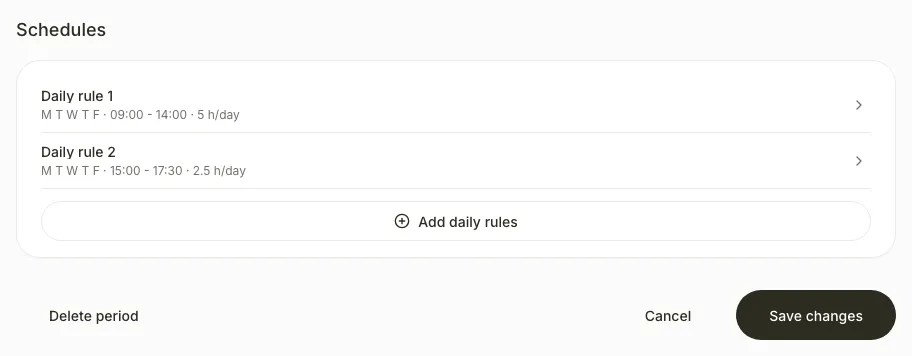
If you don’t see it
- Only Global Admin, Manager see My company in the menu.
- If you see “No work schedules configured”, no schedule has been created yet. Start at step 3.
Common questions
How do I assign a work schedule to one employee?
Open Users, open the person’s profile and select Work schedule under Professional information. The change is saved when selected.
How do I create another schedule for another team or for summer?
Repeat steps 3 to 8 with a different name, the period dates and daily rules you need, then assign the schedule to each person from their profile.
Result
The schedule is saved. With Mark as default work schedule enabled, it is assigned automatically to new people in the company.
Can't find it? Write to us