
How do I create an API key for an integration?
In Kinmu, open My company, go to Public API, select Create API key, set the name, expiration and scopes, and copy the key, which is shown only once.
On this page
On the web
Open My company Open in Kinmu If your company uses Public API.
On your phone, use the menu button to open the menu first.
In the left menu.
Open Public API
On the My company page, under Extensions, open Public API.
The API keys tab opens.
After you select it: 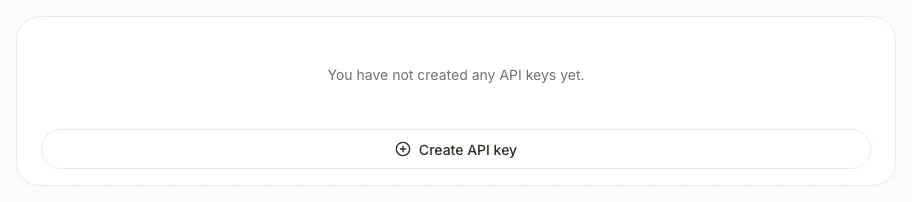
Start a new key
Select Create API key.
After you select it: 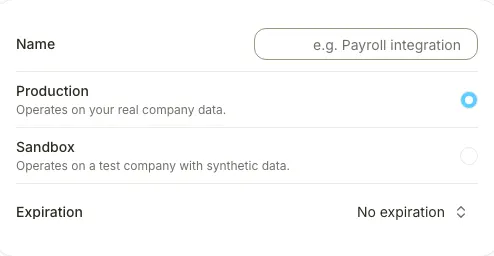
Enter a name
Complete Name with a name that identifies the integration.
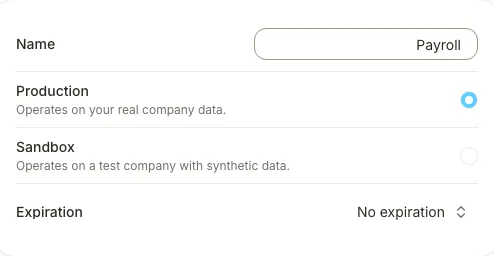
The name appears in the panel. If you see Production and Sandbox, choose the environment. Sandbox works on a test company with synthetic data.
Choose the expiration
In Expiration, choose how many days the key will work or No expiration.
After you select it: 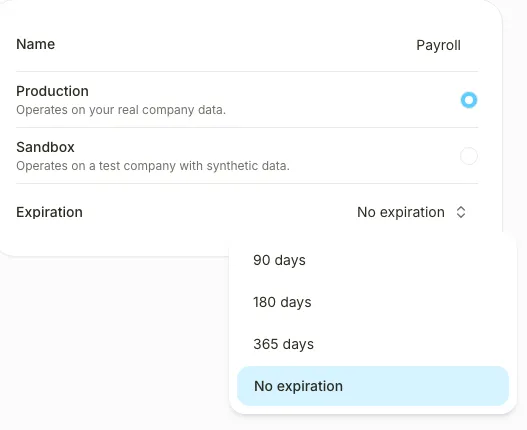
If you choose a time limit, the key will stop working automatically when it expires.
Choose the scopes
In Scopes, select only the scopes your integration needs, such as Employees (read).
After you select it: 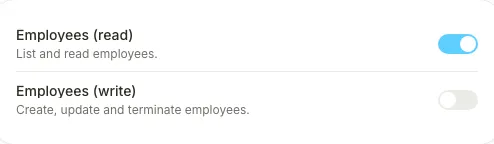
Create the key
Select Create key.
After you select the button, you see “Copy your API key now” with the full key.
Copy the key
Select Copy, store the key somewhere safe and select Done.
The key appears in the list, masked. Kinmu will not show it again.
If you don’t see it
- Public API needs the Public API extension, turned on in My company › Extensions.
- Required roles: Global Admin, Manager.
- If Create API key is disabled, you have reached the maximum of active keys. Revoke one to create a new key.
- If you see “Select at least one scope.”, tick at least one scope before creating the key.
Common questions
I lost the key. How do I get it back?
You can’t see it again. Open the key in the list and select Rotate to get a new one with the same scopes, or create a new key. The old one stops working at once, so update your integrations.
How do I stop an integration from using a key?
Open the key and select Revoke. The key stops working immediately and this can’t be undone.
Result
The new key appears in API keys with its status. Your integration sends it in the Authorization: Bearer header of each request. The technical reference is at docs.kinmu.app.
Can't find it? Write to us