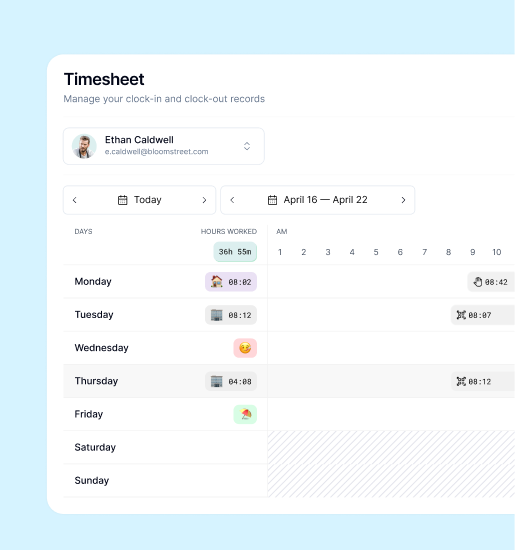
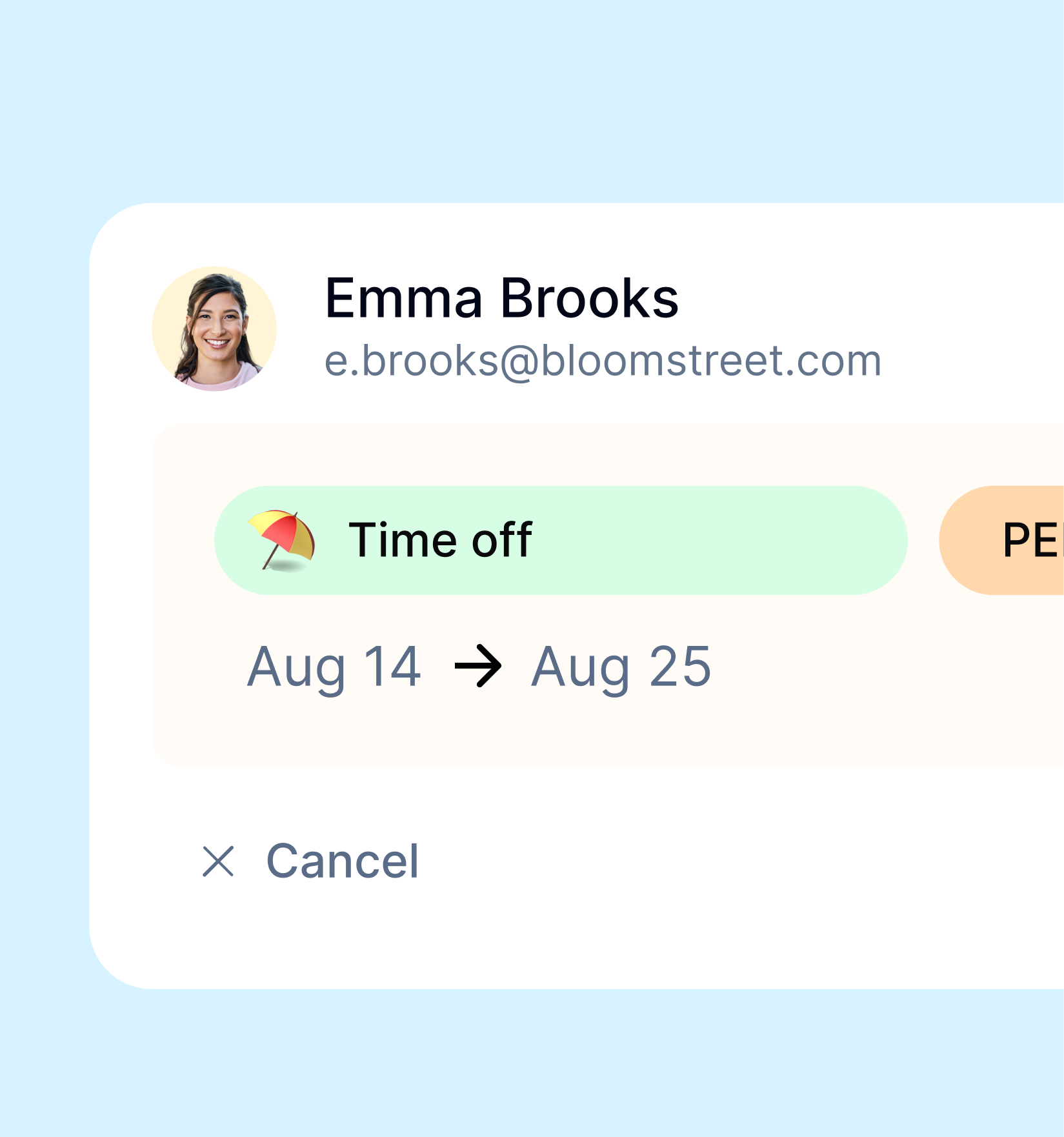
One vacation request arrives in a message, another sits in a spreadsheet, and someone asks how many days they have left. When the information is scattered, you have to reconstruct the conversation before you can make a decision.
Managing vacation requests online brings the process together: company settings, the employee’s request, the manager’s decision and the status people can check afterwards. In Kinmu, each step has a place and its own permissions.
Start with settings and balances
In My company, Vacations lets you configure annual days, working-day or calendar-day calculations and minimum notice. If unused days can be carried into the following year, you also configure their deadline and the maximum usable outside the year.
Review these settings before handling requests rather than assuming the initial values fit your company. Only Global Admins and company managers see this company configuration. An individual balance is adjusted separately through Users, by editing that person’s record.
See company vacation rules and adjusting an individual balance for the steps.
Employees send a request from My Calendar
- Open My Calendar and select New request.
- Choose the vacation option under Absence type.
- Select a single day or a date range.
- Add a short observation if needed.
- Review the details and select Create request.
The request appears in the calendar with its status. Sending it is not the same as having it approved.
If you see an overlap or insufficient-balance warning, review the request or ask your manager. The absence request guide explains the flow. You can also check the status of an existing request.
Managers review and decide in My Tasks
The Requests tab in My Tasks brings pending requests together. Each one shows the employee, request type and dates. Open its details to review the available context before deciding.
Check the dates, balance and how the absence fits the team you manage. Select Approve or reject the request. When rejecting, give a reason so the employee can understand the decision and adjust the request where appropriate.
The decision remains yours. Vacation requests require approval, and you can resolve only requests within your permissions. If the controls are disabled, check that access. The manager’s request guide explains the available actions.
Check availability without mixing up statuses
If the Team Calendar extension is enabled and you have access, filter by location, team and dates to review recorded absences. Details distinguish pending requests from approved absences.
A pending request is not yet an approved absence. Resolve it through My Tasks, under Requests. Do not assume someone is available for any work simply because a date has no absence: the calendar shows the records it contains, within your viewing permissions.
Employee visibility depends on company settings and each location and team. See checking team availability.
Give the team a clear process
Check who configures the rules, who resolves requests and where employees check their status. Then explain one shared route: request through My Calendar, decide through My Tasks and check the outcome in the calendar. Requests and decisions can stay in one system rather than being reconstructed from messages and separate spreadsheets.