
How do I sign in to Kinmu?
Enter your email or phone number on the Kinmu sign-in screen, select Continue and type the 6-digit code you receive. Kinmu doesn’t use passwords.
On this page
On the web
Open the sign-in screen
Go to my.kinmu.app in your browser.
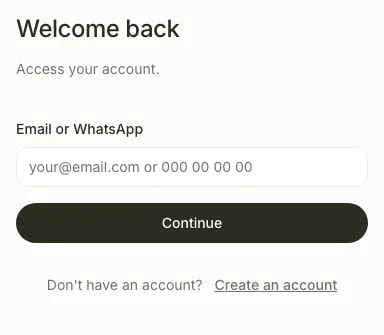
You see Welcome back and the Email or WhatsApp field.
Open in KinmuEnter your email or phone
Enter the email or phone number your company registered and select Continue.
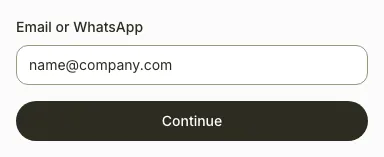
You see Enter Code and Kinmu sends you a 6-digit code.
Enter the code
Type the 6-digit code you received.
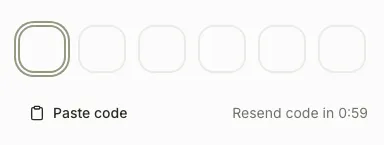
Kinmu checks the code and opens Home.
On the app
Open the sign-in screen
Open the Kinmu app and tap Sign in.
After you tap it: 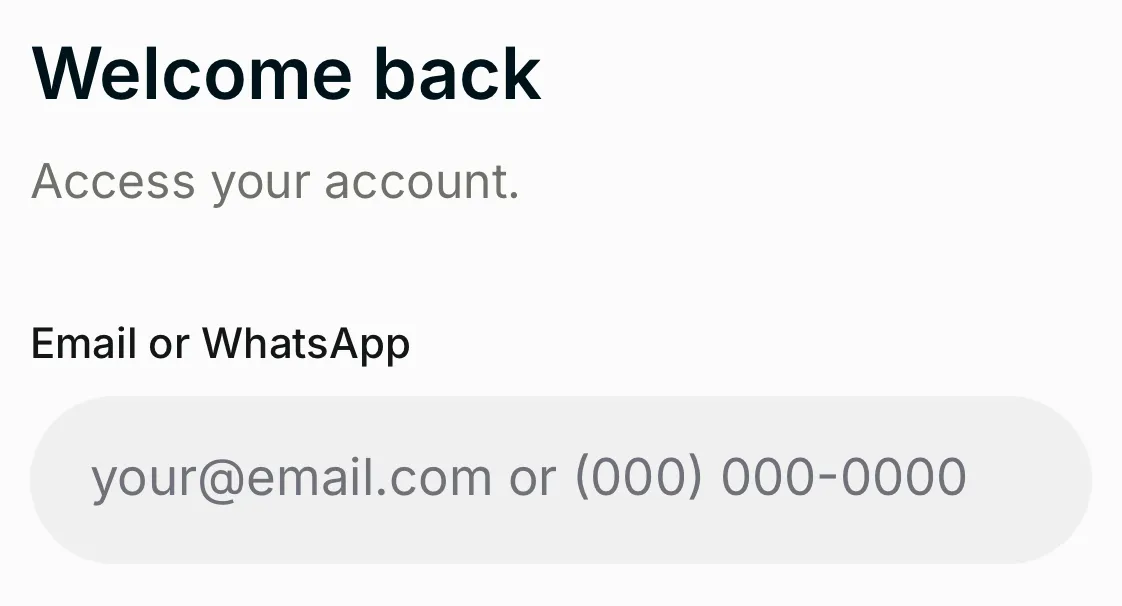
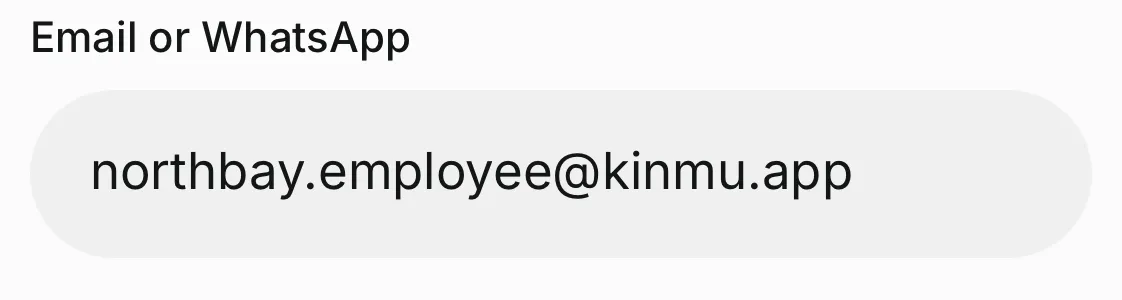
You see Welcome back and the Email or WhatsApp field.
Open in KinmuEnter your email or phone
Enter the email or phone number your company registered and tap Continue.
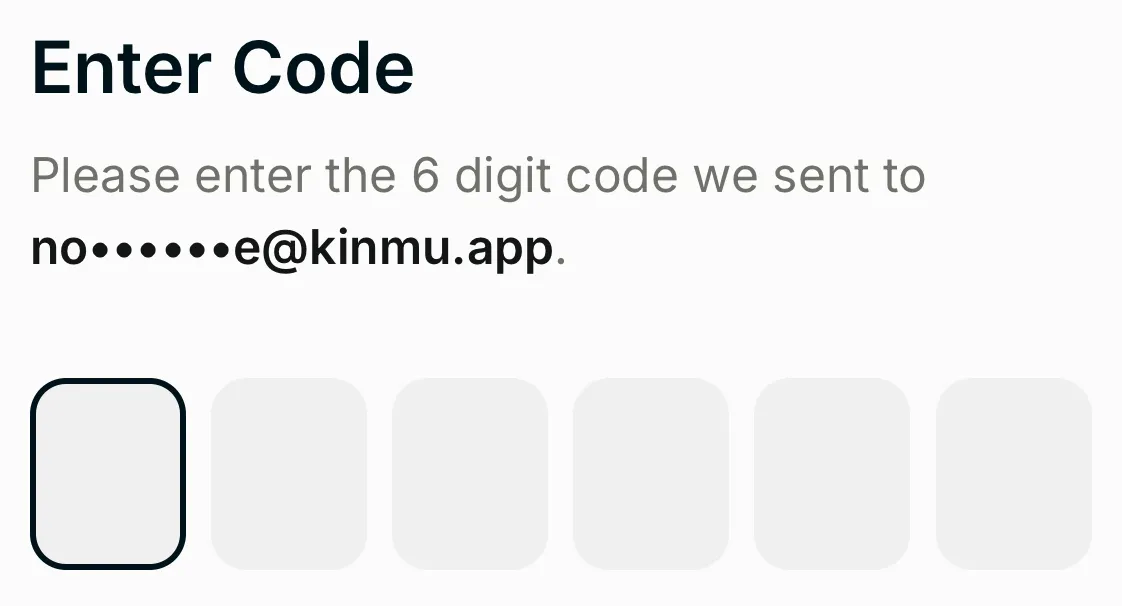
You see Enter Code and Kinmu sends you a 6-digit code.
Enter the code
Type the 6-digit code you received.
Kinmu checks the code and opens Home.
If you don’t see it
- If you see “This email or phone number is not registered.”, ask your manager which details your company registered.
- If you see “This email is not registered. Try your phone number.” or “This phone number is not registered. Try your email.”, use the other one, or ask your manager which details your company registered.
- If you see “Invalid code”, check the last code you received and type it again.
- If you see “Too many attempts.”, wait the seconds shown and try again.
- If you see “Your company has used up its SMS allowance for this month. Use email or contact your administrator.”, sign in with your email.
- If you have a pending invitation, select Continue on the web to finish creating your account. In the app, open the invitation link your company sent you.
Common questions
Do I need a password?
No. Each time you sign in, Kinmu sends a 6-digit code to your email or phone by WhatsApp or SMS.
The code didn’t arrive. What can I do?
Wait until Resend code in finishes and request a new code. Check your spam folder if you used your email.
Can I use the same account on the web and on my phone?
Yes. Sign in with the same email or phone on both.
Result
You are in Kinmu and can clock in.
Can't find it? Write to us