
How do I view my clock-in location data?
In Kinmu, open My account and My location data to see the location stamps of your clock-ins and download them.
On this page
On the web
Open My account Open in Kinmu If your company uses Location check-in.
On your phone, use the menu button to open the menu first.
Your account opens with the My data section.
Open your location data
In My data, select My location data.
After you select it: 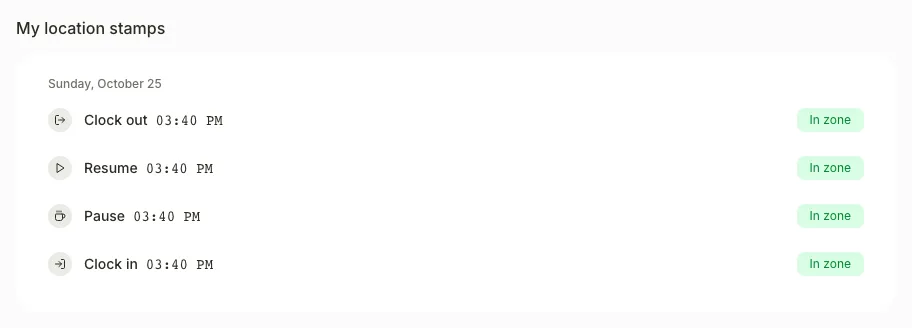
My location stamps shows, day by day, each clock-in with its time and result, such as In zone or Outside zone.
Download your data
In Download my data, select Download.
Your location stamps are saved in a CSV file.
If you don’t see it
- If My location data doesn’t appear in My account, your company doesn’t use the Location check-in extension, so Kinmu doesn’t record your location.
- If you see “No location stamps yet.”, you haven’t clocked in with location yet.
Common questions
Who can see my location data?
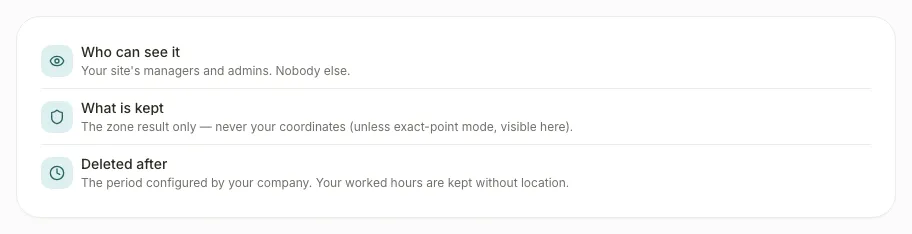
The managers and admins of your workplace. The screen explains this under Who can see it, What is kept and Deleted after.
Does Kinmu keep my coordinates?
Usually not. Kinmu keeps the zone result, such as In zone, unless your company uses exact-point mode, which you can see on this screen.
Does the browser read my location when I select Check?
No. Check in Location in this browser only checks the browser’s location permission. Your position is only read when you clock in.
Result
You know what Kinmu kept about your location each time you clocked in, and you have a copy in a file.
Can't find it? Write to us