
How do I review my clock-ins and hours?
Open Clock-in records in the Kinmu menu to see your week day by day, your hours today and this week, and the status of each day.
On this page
On the web
Open Clock-in records Open in Kinmu
On your phone, use the menu button to open the menu first.
Your current week appears with one row per day, and your totals at the top in Your hours today, Your hours this week and Your daily average.

Choose the period
Under Viewing period, use the arrows to move to another day or week, or pick a date.
After you select it: 
The rows show the clock-ins of the week you chose.
Open a day
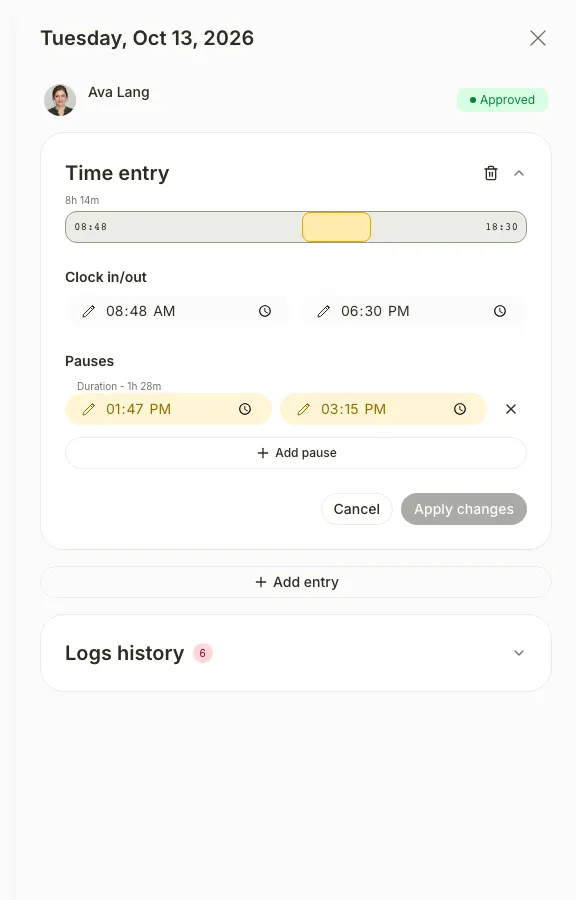
Select the row of the day you want to see.
A side panel opens with that day’s clock-ins, pauses and status.
If you don’t see it
- If you see “No time records in this period”, you have no clock-ins that week. Choose another week under Viewing period.
- Future days can’t be opened.
- If Clock-in records is greyed out and you see “Available once the subscription is reactivated”, your company’s subscription is paused. Ask your manager.
Common questions
What do APPROVED, PENDING and REJECTED mean?
The status appears in the day panel. They show whether your manager has validated your hours for that day. A rejected day shows the reason and needs a correction from you.
Can I download my clock-in records?
Yes. Select Download records at the bottom of the page to download the records of the week you are viewing.
How do I fix a wrong time?
Open the day, change the time in Clock in/out and select Apply changes.
Result
You can see your hours for the week and the clock-ins and pauses of each day.
Can't find it? Write to us