
My offline clock-in has not synced. What can I do?
In the Kinmu app, tap the pending notice under the timer to open Offline check-ins, then select Send now once you have a connection.
On this page
On the app
Open your offline clock-ins
With a connection, tap the notice under the timer, for example “1 check-in pending”.
After you tap it: 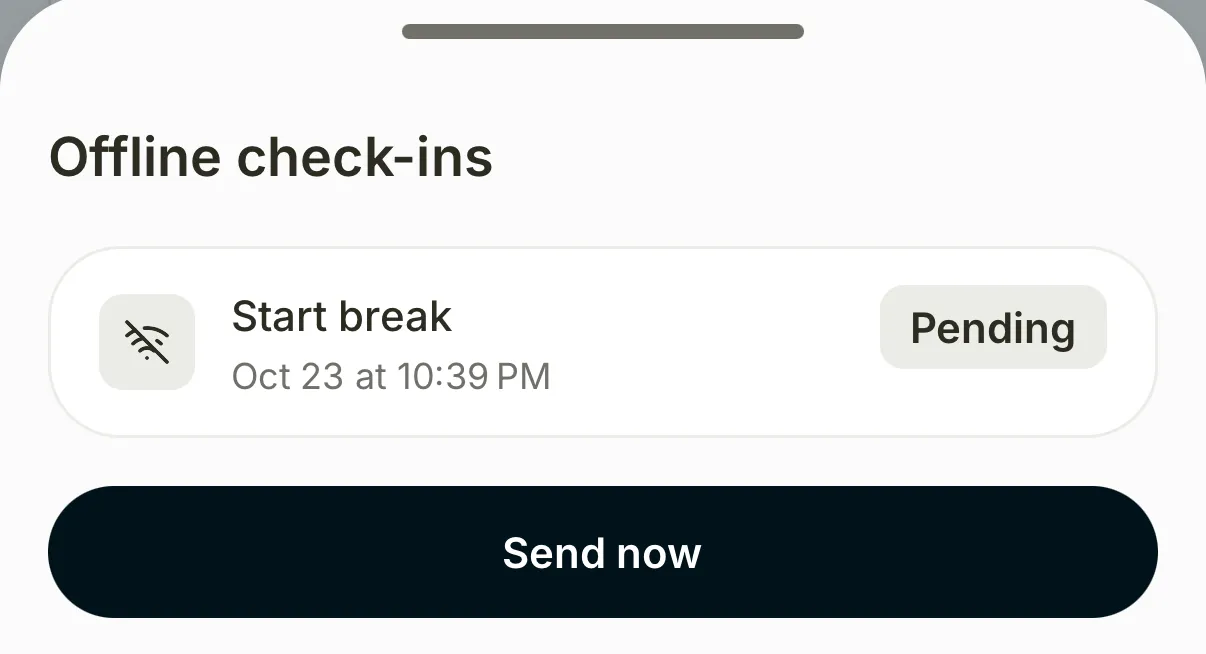
Offline check-ins opens with each clock-in, its time and the Pending label.
Send them now
Tap Send now.
After you tap it: 
You see “Offline check-ins sent” and the notice disappears.
If you don’t see it
- If the notice says “1 check-in not recorded”, Kinmu couldn’t record that clock-in. Open it to see the reason and check it with your manager.
- If you see “The status changed from another device”, you clocked in or out on another device in the meantime. Check your records for the day.
- If you see “Not sent because a previous check-in couldn’t be recorded”, solve the earlier clock-in first with your manager.
- If you see a location message such as “You are outside your work zone.”, your company’s location rules didn’t allow the clock-in. Your manager can record your working time.
Common questions
Can I remove a clock-in that wasn’t recorded?
Yes. Tap Dismiss on it once you have checked it with your manager. Ask them to add the time you worked if it is missing.
Will I lose unsent clock-ins if I log out?
Unsent clock-ins are sent when you sign back in with the same account on this phone.
Result
Your offline clock-ins appear in your records with the time you tapped.
Was this helpful?Thanks
Can't find it? Write to us